

Last Updated: August 25, 2026
Important: The Test User Dashboard (TUD) is being taken offline on August 28, 2026. For the current process for finding test accounts, accessing credentials, and obtaining MFA codes, see the Test User Dashboard guide.
The instructions on this page apply specifically to using test accounts for usability testing. Follow the Test User Dashboard guide for current account-access instructions before continuing with any applicable usability-testing steps below.
If you’re conducting usability tests in the staging environment you will need a test account. This page walks you through the process of finding an appropriate account, and provides guidance on meeting VA.gov security standards for sharing passwords. It also explains how to reset a password so others can use the account when your testing is complete.
Working with test accounts
Test accounts are simulated VA.gov user credentials used to sign-in to the staging environment for testing purposes. The staging site has several hundred test accounts shared among all VFS teams. Each test account has unique attributes that allow you to simulate the experience of a real user based on your requirements.
Before you begin
-
You’ll need to do the following:
-
Sign-in to the VA.gov network using Government Furnished Equipment (GFE), Citrix Access Gateway (CAG) or Azure Virtual Desktop (AVD) (access required)
-
Step-by-step guide
Step 1: Find an account
First, you’ll find an account in the TUD that suits the needs of your product.
-
Once you’re on the VA network, open the TUD in a browser. (see the Before you begin section above)
-
Use the filters to find an account that has the unique account attributes your product needs to test it.
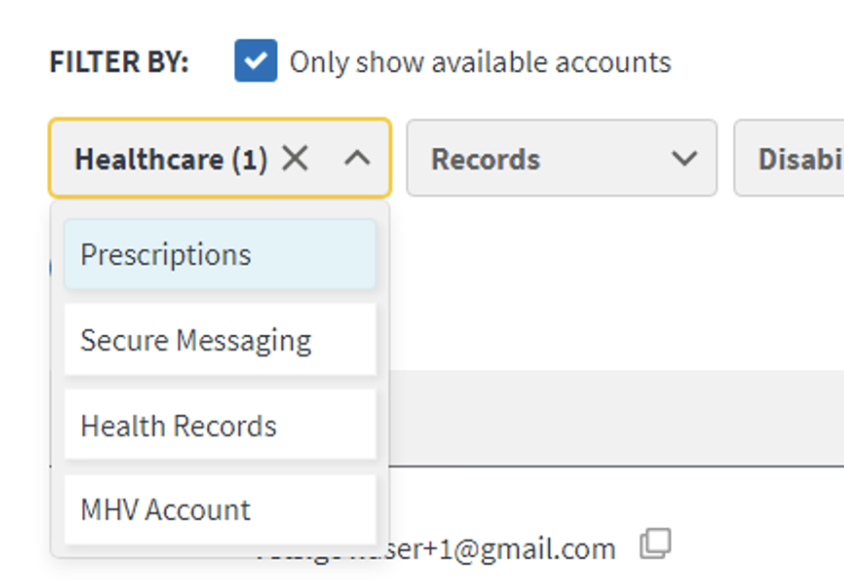
Filter by accounts dropdown menu
-
Click on the expand arrow to see the account details. Use this information to determine if the account will work to test your product.
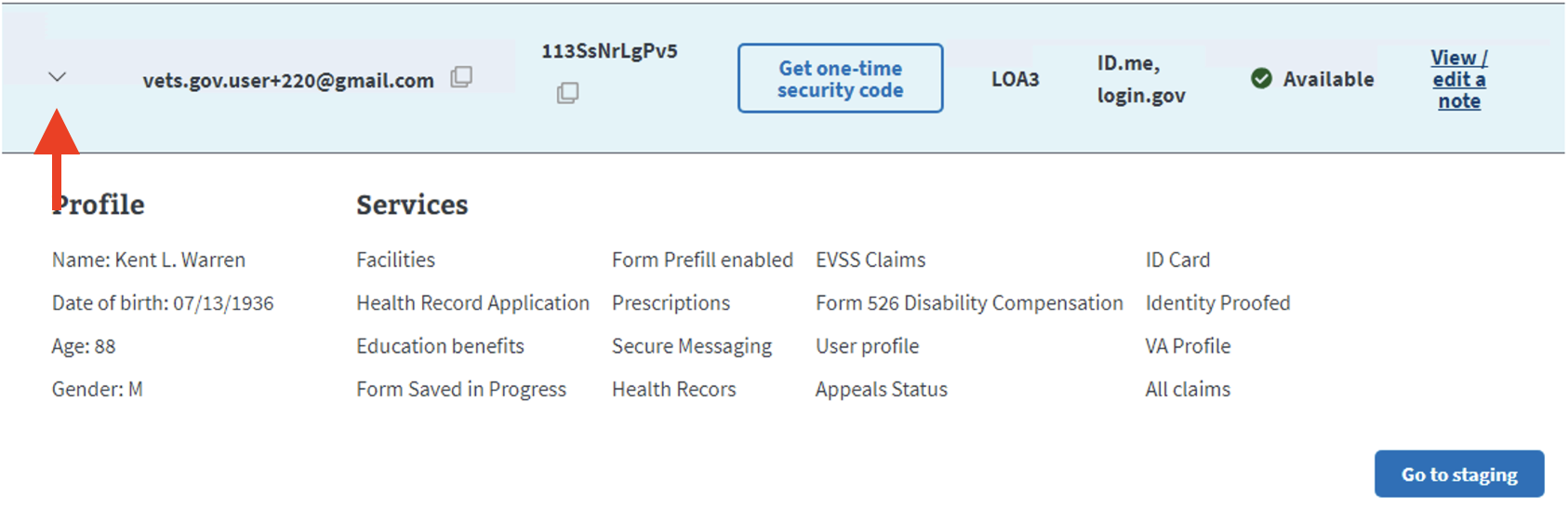
Expand arrow to show more account detail
4. Click View/edit a note on the right side of the row to view if this account is in use.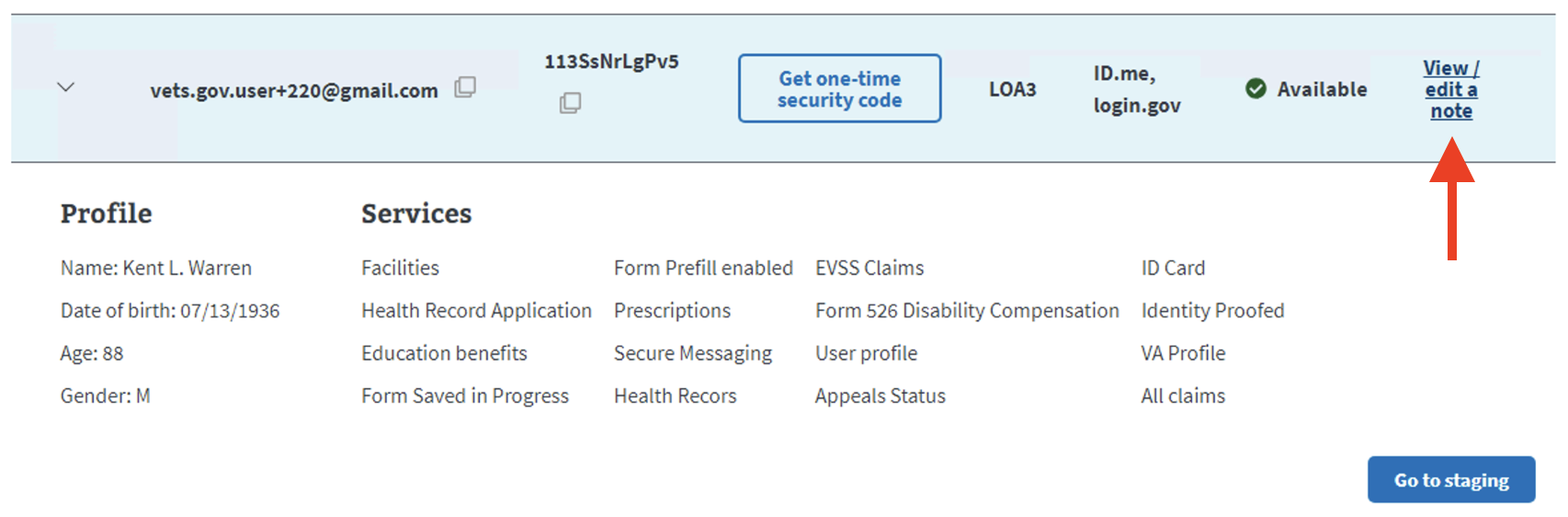
View/edit a note link
Step 2: Change the password
Once you find an account that works for your testing, you’ll need to change the password before each usability test. Follow these steps to change the password for an account selected from the TUD.
-
Click on the Go to staging link or open staging in a browser
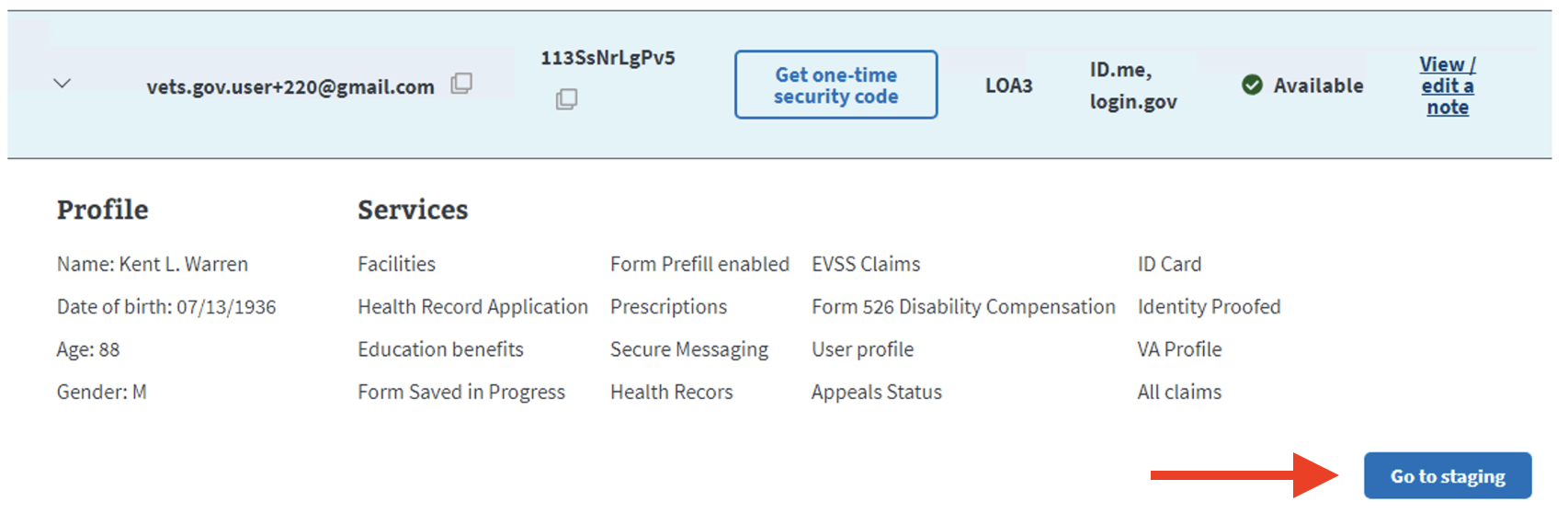
‘Go to staging’ button
-
Click Sign-in and select the ID.me button
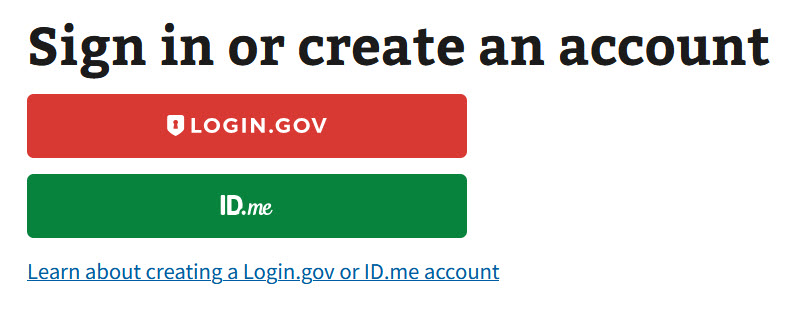
ID.me sign-in
-
Click Forgot password.
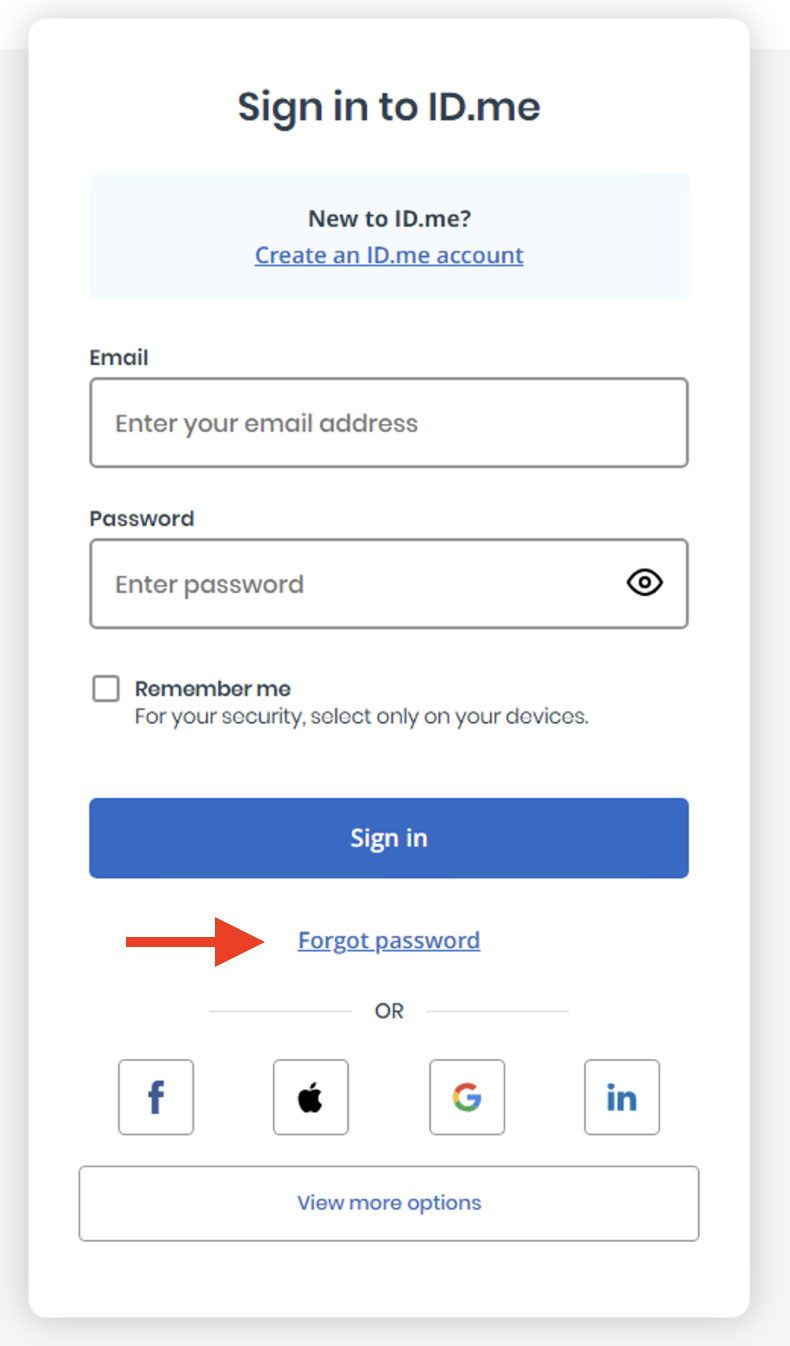
‘Forgot password’ link
-
Enter the email address of the test account you’d like to use, then click Continue.
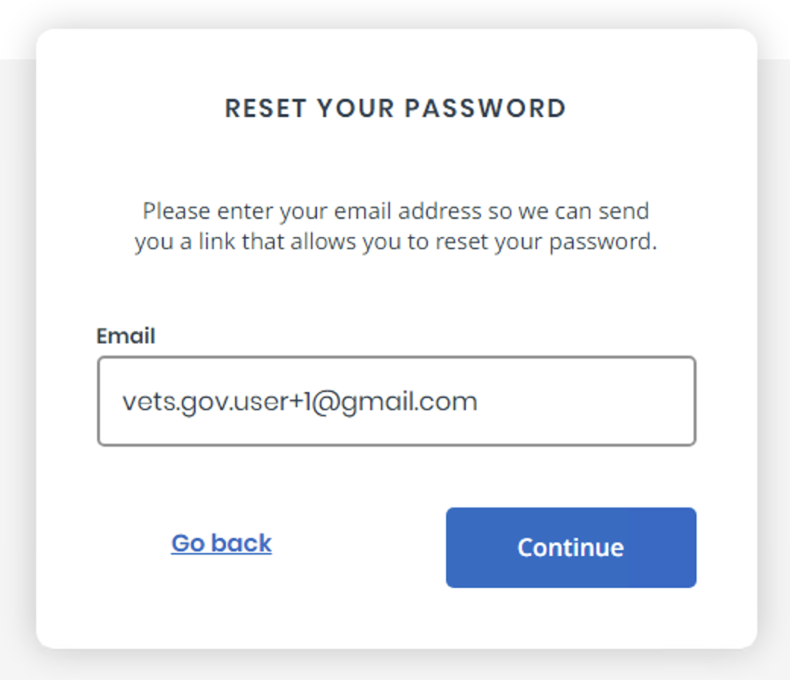
Reset your password window
-
Click the Complete confirmation link in the yellow box at the bottom of the window.
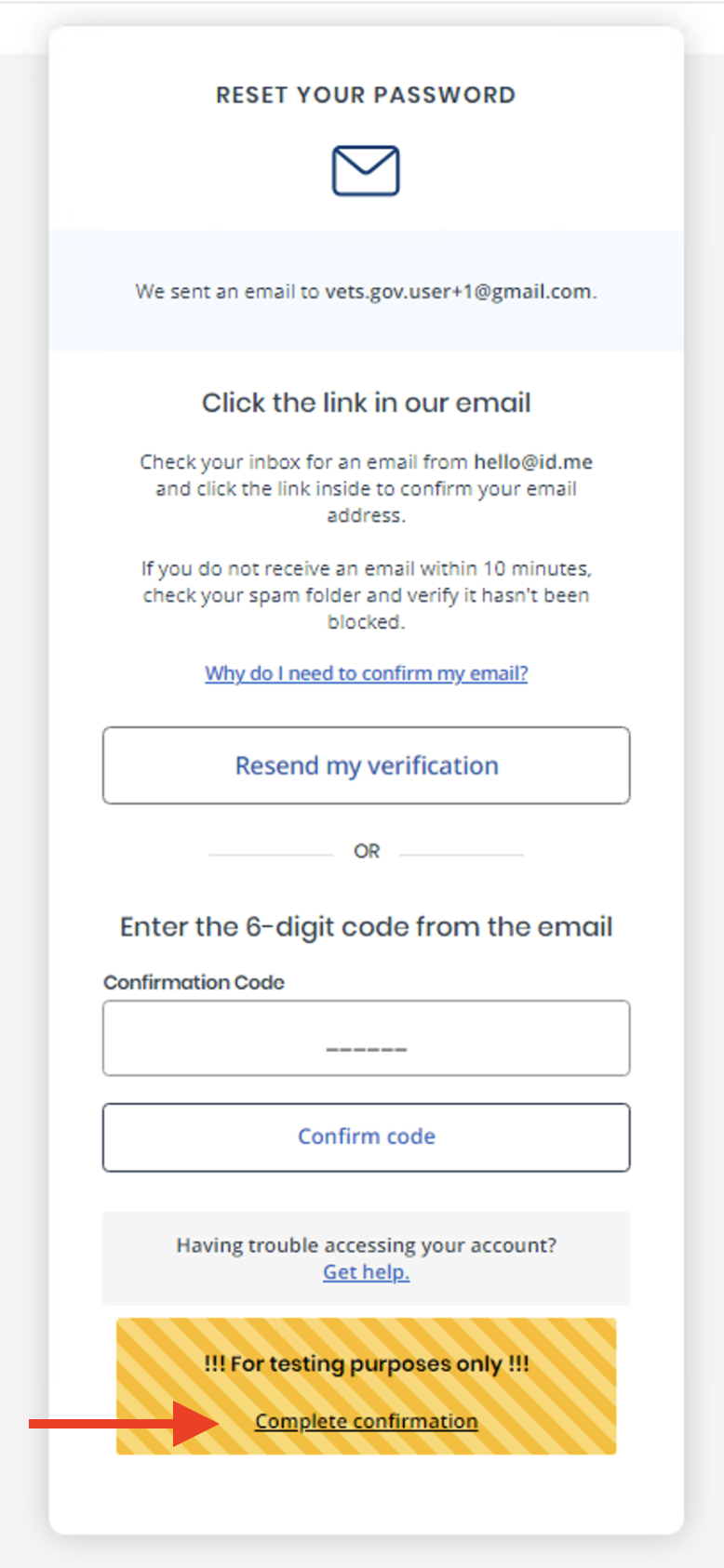
Complete confirmation link
-
Click Continue on the screen to complete your authentication. This information is pre-filled for you. No personal phone number is needed.
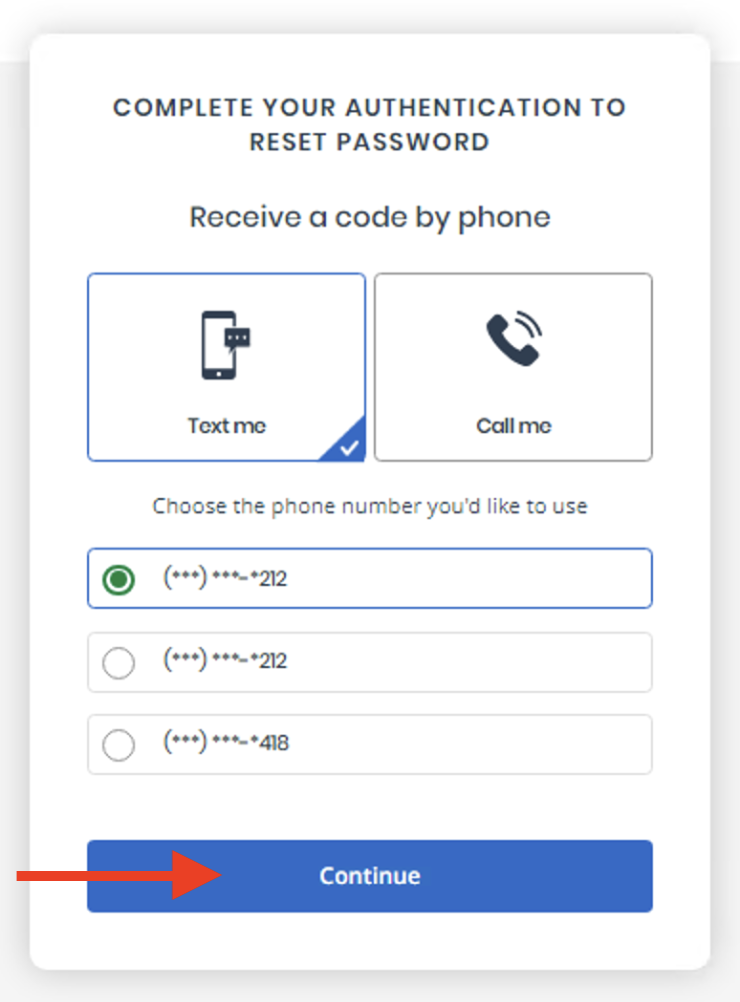
Receive a code by phone window
-
Click Continue on the screen to enter the pre-filled 6-digit code.
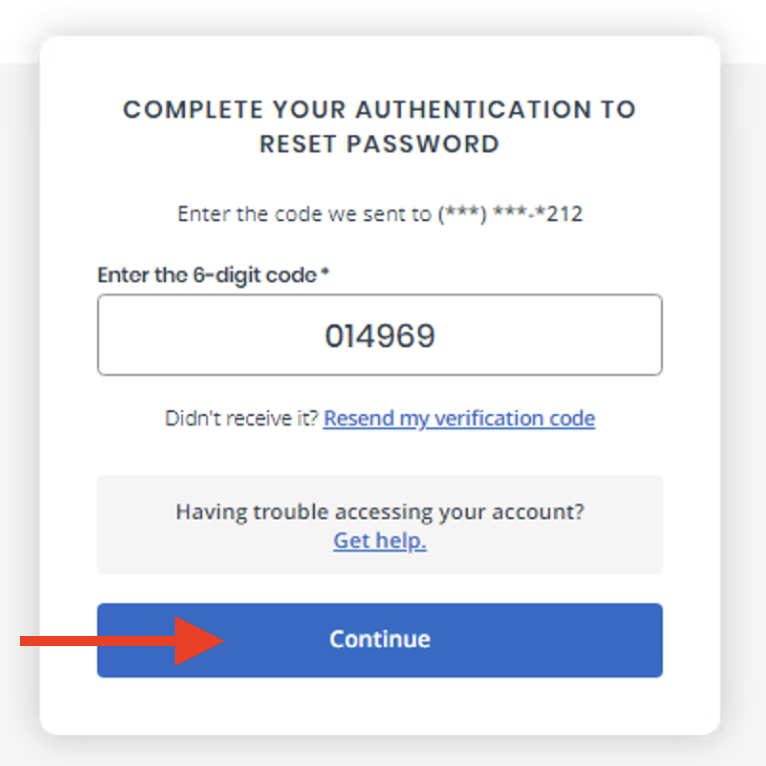
Enter the 6-digit code window
-
Enter the new password you want to change for the usability test session and click Continue.
NOTE: The TUD does not update when you change the password, so please make sure to note the following:
-
Email of the account you chose
-
New password
For the new password, you can use something like [Abbreviated study name][00]
Your new password should contain:
-
lowercase letter
-
uppercase letter
-
number
-
at least 8 characters
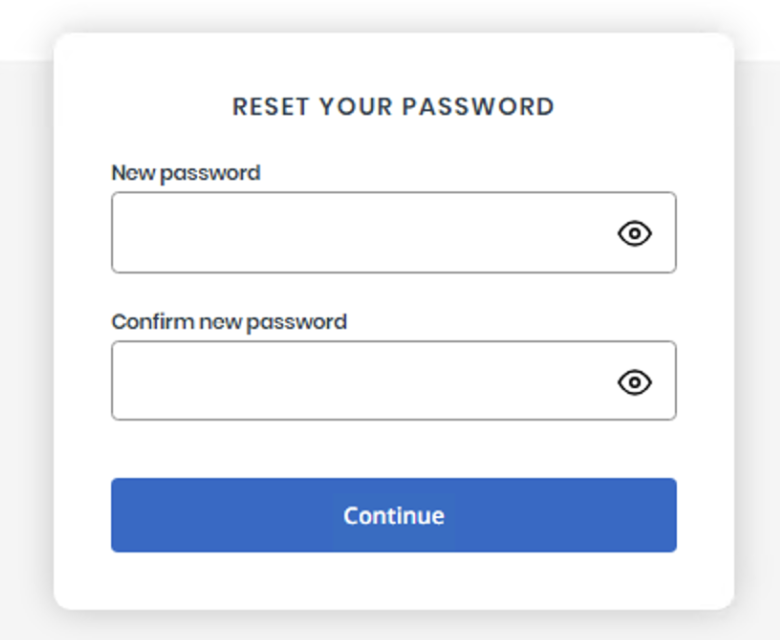
New password/confirmation window
-
Go back to the TUD and find the account that you just changed the password. Then, click View/edit a note on the right side of the row.
View/edit a note link
-
Add a note to the account so others don’t try to use it.
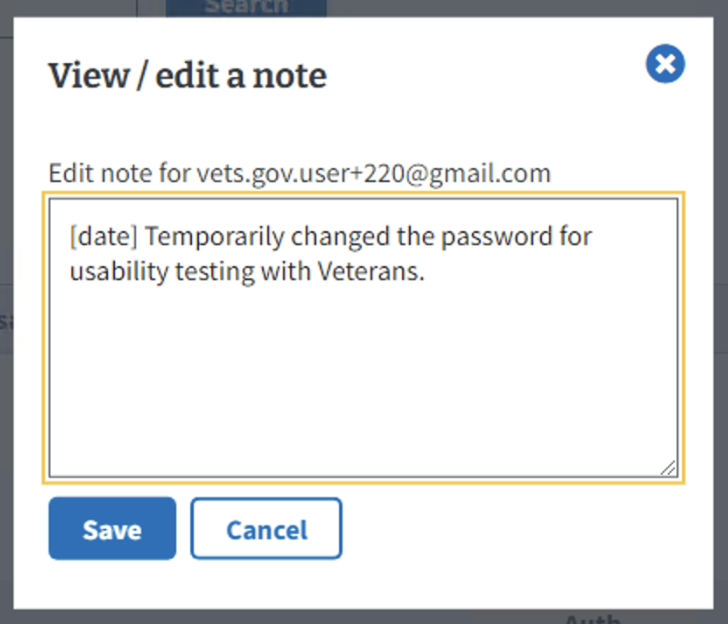
View / edit a note window
Step 3: Reset the password
At the end of each day, please reset the password to what's in the TUD so others can use the account if needed.
To reset the password, follow these steps:
-
Open the TUD in a browser while on the VA.gov network (see the Before you begin section)
-
Search for the account that you changed the password by entering the email address you used for testing in the search field

Email address of the account you’d like to reset the password
-
Click on the Go to staging link and sign-in with ID.me as you did above with “Forgot password”.
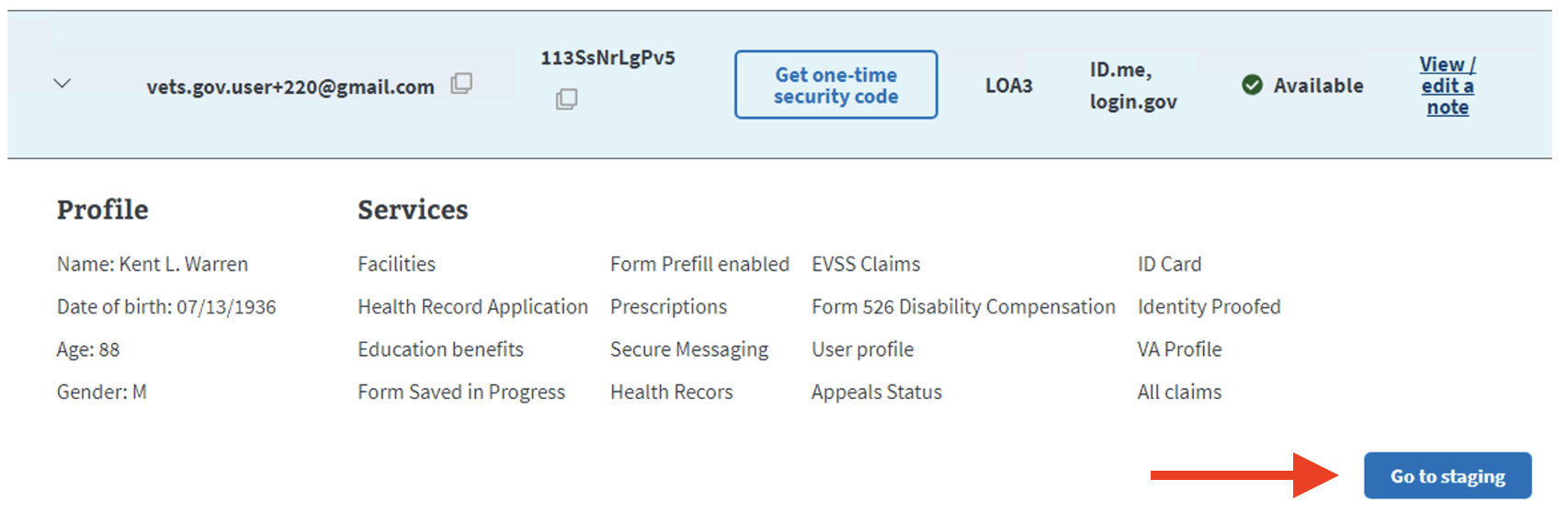
‘Go to staging’ button
-
Click Forgot password
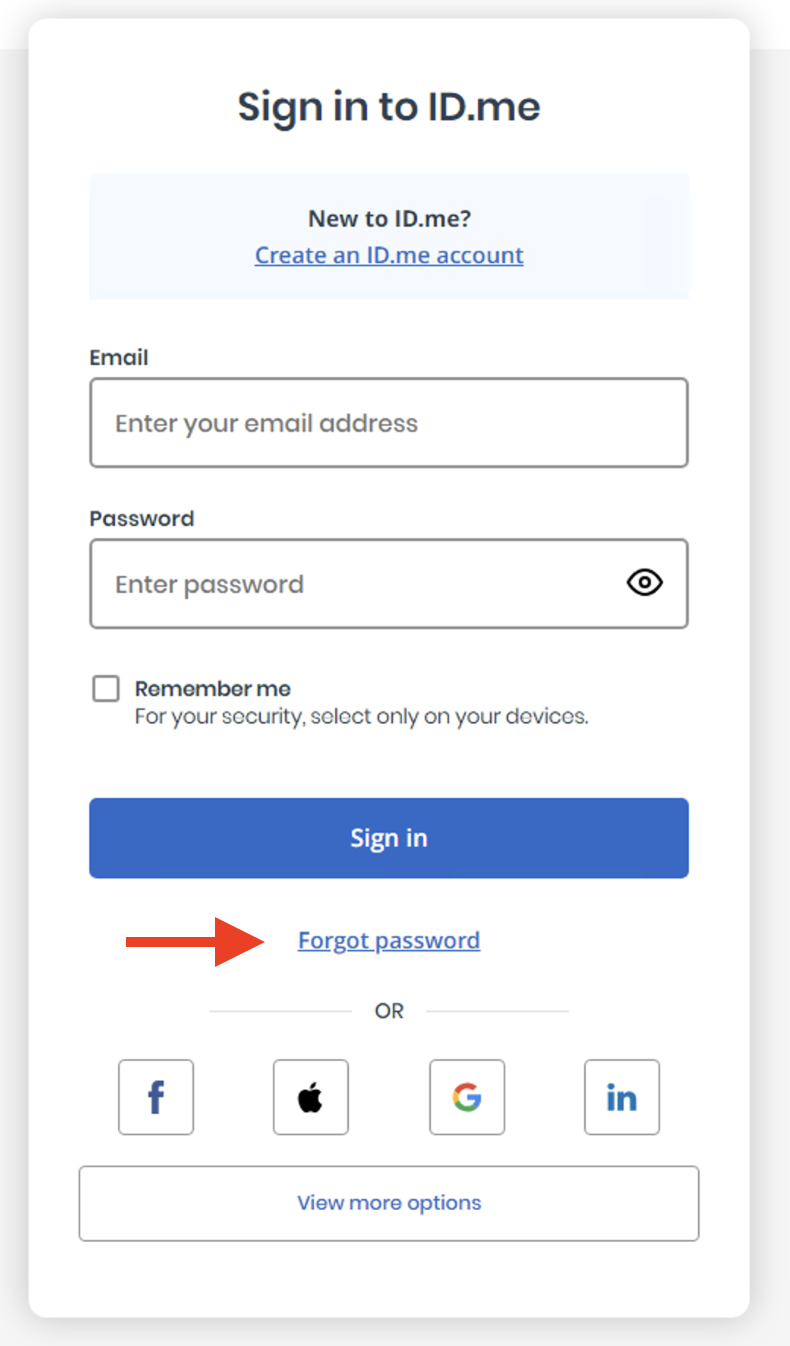
‘Forgot password’ link
-
Return to the TUD and copy the email by clicking the copy icon.

Copy email address icon
-
Paste the email address and click continue
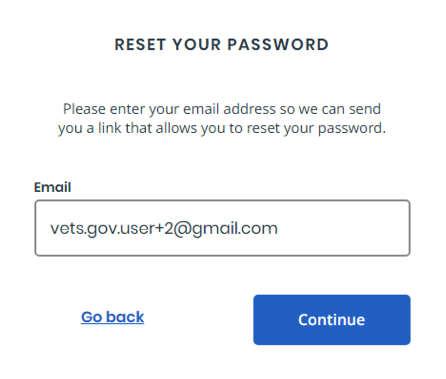
Email address in Reset password window
-
Click through the next three screens as you did for ‘Forgot Password’.
-
Next, go back to the TUD and copy the password. This is the original password that you should reset it to.

Copy password icon
-
Paste the original password to reset it and click continue.
-
The password has been reset and is ready for the next person to test!
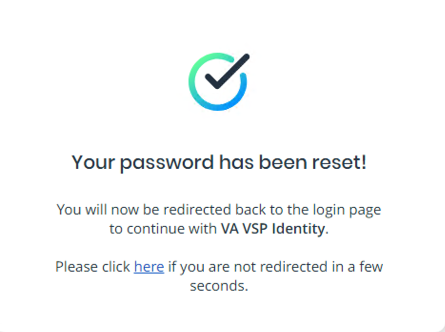
Confirmation of password reset
Help and feedback
-
Get help from the Platform Support Team in Slack.
-
Submit a feature idea to the Platform.