

Last Updated: September 18, 2026
It’s important to conduct mobile research with Veterans to ensure everyone can use what we’re designing. This guide covers tips for setting up effective mobile tests, including using Figma prototypes and conducting pilot tests with different devices. It also explains two popular methods for testing—laptop hugging and screen sharing—outlining their pros and cons to help you choose the best approach for your participants.
Planning mobile research
-
Plan to have the participants complete the tasks using their phone, as opposed to using an emulator on the desktop or shrinking the desktop browser down
-
While we encourage testing on mobile devices, testing on tablets is also acceptable
-
Figma prototypes and staging are viable options for testing mobile flows on VA.gov
-
To provide more context, consider starting the prototype from what looks like a phone’s home screen (iOS or Android) rather than from your design’s start page, which is already open. (Make sure the first hotspot on that screen targets the phone’s browser icon—Safari or Chrome.)
-
Conduct pilot tests with team members with at least an iPhone and an Android phone
-
Prioritize fewer tasks (2-3) for the user test in case the initial phone and screen sharing setup takes longer than expected. Plan a few more tasks that are lower priority that you can get to if you have time.
-
Alternatively, build a buffer into how long you say the session will take in planning/recruiting docs. E.g. we think it'll be 45 min, so schedule 1 hour and set expectations w/ participants that it'll be 45-60 min
-
-
Decide which method of mobile usability testing you'll use. Read more about that next.
Selecting a method
Two methods you can use for conducting mobile usability testing are the laptop hugging method and the screen sharing method. Read about each one and their pros and cons.
Laptop hugging method
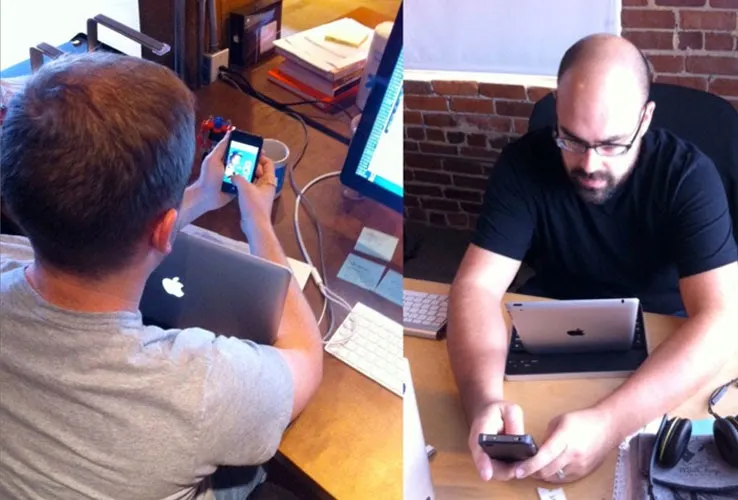
The laptop hugging method allows a participant to show the moderator their mobile device using their computer's webcam.
Ask the participant to join the research session on their computer. When you're ready to test the mobile experience, have them hold their phone in front of their webcam with the phone screen facing the camera. The participant can continue interacting with their phone while the moderator observes the screen through the video call.
This method can be useful when screen sharing from a mobile device isn't practical or when you want to minimize the amount of technical setup required from participants.
|
Pros |
Cons |
|---|---|
|
Ability to see the full movement of the fingers |
People without laptops or working web cam can’t use this method |
|
Relatively easy instruction and setup |
The quality of the webcam could be blurry |
Things to consider
The moderator's view of the screen may be less clear than with direct screen sharing, and it may be difficult to see small text or detailed interactions. Holding a phone in front of a webcam can also become uncomfortable during longer sessions.
Before choosing this method, consider the length of the activity and whether you'll need to closely observe detailed interactions on the participant's screen.
This photo shows what it looks like:
Source, and more about the laptop hugging method
Mobile screen sharing method
Mobile screen sharing allows the moderator to directly observe a participant's mobile screen during a research session.
Depending on the approved video conferencing tool you're using, participants may be able to join the session from their mobile device or share their mobile screen while remaining connected to the session on another device.
Before your study, test the screen-sharing process on the types of devices participants are likely to use. Make sure you understand what participants will need to do before and during the session so you can provide clear instructions.
|
Pros |
Cons |
|---|---|
|
People without laptops or webcams can use this method |
Moderators can not see hand movements |
|
Clear, direct view of the participant’s screen |
May require additional set up including changing settings on the device |
Things to consider
Screen sharing generally gives moderators a clearer view of the participant's interactions than the laptop hugging method, but it can require more setup from participants.
Consider participants' comfort with technology and any accessibility needs when deciding whether screen sharing is appropriate. Test your setup with relevant assistive technology before conducting research with participants who use it.
Accessibility considerations
Your research setup should not create unnecessary barriers for participants using assistive technology.
Before conducting mobile research with participants who use assistive technology, test your planned setup with the relevant device and technology whenever possible. Screen sharing, audio recording, screen readers, magnification, and other assistive technologies may behave differently depending on the participant's device and conferencing setup.
If your research method interferes with the participant's ability to use their assistive technology normally, consider a different research setup rather than asking the participant to change how they typically interact with their device.
Build additional setup time into the session when needed, and avoid making assumptions about a participant's familiarity with a particular device, conferencing tool, or accessibility feature.
Help and feedback
-
Get help from the Platform Support Team in Slack.
-
Submit a feature idea to the Platform.